iPhone / iPad
App Store · $2.99 one-timeRedownload the app from Purchased using the same Apple Account. Both devices share the purchase. Check the App Store page for system requirements.
Cross-platform rule-based proxy client for importing existing configurations and checking rule routing. iPhone / iPad: $2.99 one-time through the App Store; Mac, Windows, Android and Linux: free.
Current version v2.2.92 · iPhone / iPad: $2.99 once; Mac, Windows, Android and Linux: free
Getting started: import and connect →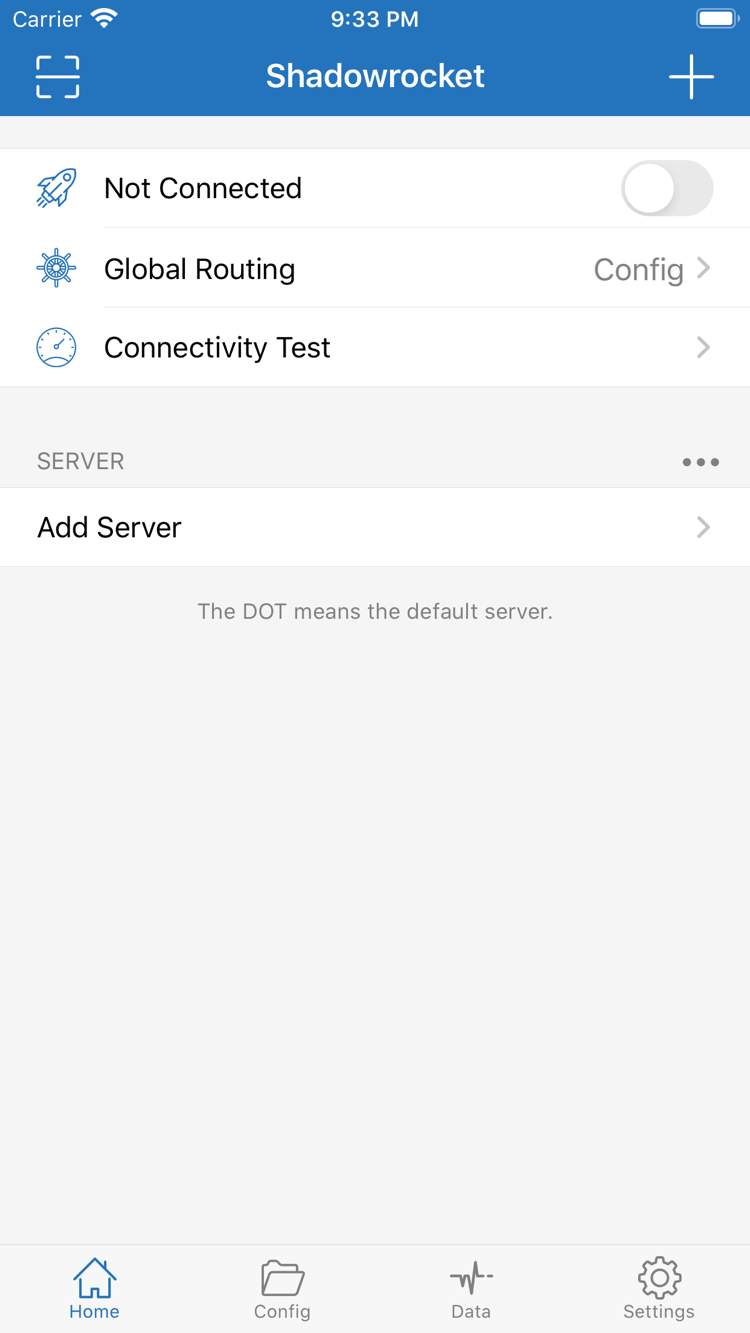
Check your device and system, then choose how to get the app. iPhone / iPad: $2.99 one-time through the App Store; Mac, Windows, Android and Linux versions are free. Desktop and Android packages are available from this site's download page, under /dl/shadowrocket/. Device links on this page take you to instructions and do not start an installation.
Redownload the app from Purchased using the same Apple Account. Both devices share the purchase. Check the App Store page for system requirements.
Check the chip in About This Mac and choose the matching dmg. Both architectures have separate packages; do not infer the chip from the model name.
Check the system architecture before getting the installer. Follow the download page instructions for first-run system prompts and subsequent network permissions.
Get the package suited to your device. Grant installation permission only to the browser or file manager used for this installation. Confirm the system VPN prompt when connecting for the first time.
Choose the package format for your distribution. For AppImage, set executable permissions first, then check the runtime requirements of your desktop environment.
The installer is not code-signed, so the system may block the first launch. After confirming the file is from this site, use Open Anyway in Privacy & Security on Mac; in Windows SmartScreen, select More info and then Run anyway; on Android, follow the system prompt to allow apps from the current installation source. On organization-managed devices, follow the administrator's policy and do not repeatedly disable system protection.
Full instructions for allowing installation →Choose Config in Global Routing to route requests according to the currently enabled configuration. Rules are usually matched from top to bottom; the first match determines whether to use PROXY, DIRECT or REJECT. Back up the configuration before editing. Check the scope of domain and IP rules, put more specific conditions first, and review the fallback behavior of FINAL. The example domains illustrate syntax only and do not represent available services. A matching rule does not guarantee that a server is reachable; if a connection fails, check the server details, DNS and current network separately.
DOMAIN-SUFFIX,example.com,PROXY
DOMAIN,ads.example.net,REJECT
IP-CIDR,192.168.0.0/16,DIRECT
FINAL,DIRECT
On Demand triggers connections based on network conditions; it does not replace routing rules in a configuration. Before reviewing the related settings in Settings, complete one manual connection test, then organize Wi-Fi, cellular or domain conditions as needed. If conditions have an order, test them individually to avoid losing track of the trigger after adding several at once. If the connection turns back on after you disable it, check On Demand before deleting a server. Test again after changing networks, and distinguish the system connection state from the policy used for a specific request; they are separate checks.
SettingsOn DemandGlobal RoutingShadowrocket supports multiple proxy and tunneling protocols. When adding a server you already have, check Type in Add Server, then enter Host, Port and authentication details for that protocol. The fields for Shadowsocks, VMess, VLESS, Trojan, HTTP, SOCKS5, WireGuard and Hysteria2 are not interchangeable. Do not choose a protocol by name alone or reuse other parameters by changing only the address. Match entries involving TLS, transport options or keys to the server configuration field by field. When choosing a protocol, also consider network quality and battery use on mobile devices; see the protocol reference for details.
Type / Host / PortShadowsocks / TrojanWireGuard / Hysteria2Follow the tutorial to import an existing subscription from the add screen. You can also enter existing single-server details manually or use Scan QR Code. After import, check that the group and server entries appear, then select an entry to test. Updating a subscription retrieves its remote contents again; deleting a subscription is different from deleting a local entry, so confirm which item you are managing. Subscription URLs may contain access credentials; do not include them in public screenshots or troubleshooting notes. This site explains how to import and manage information you already have. It does not provide, sell or recommend nodes or subscriptions, and cannot verify the status of remote services for you.
Add ServerScan QR CodeImport from Cloud JSONServer entries describe where to connect; configuration files describe how requests are handled. Open Config and confirm which file is active before checking sections such as General, Rule and Hosts. Keep a copy of the original file when changing rules, so you can restore it if a remote update overwrites local changes. If you use iCloud sync, check the relevant switches, account and sync results; a purchase does not mean that all configurations have migrated. Connection permissions and the runtime environment still need to be checked on each device. Store configurations containing sensitive server details only where you have control.
GeneralRuleHostsStart by confirming that your device has network access, then check the selected server and Global Routing. Connectivity Test results apply only to the test conditions and do not show that every destination is reachable. Use Diagnostics and Data to review error clues, connections and traffic changes, then decide whether to check DNS or a specific rule. Data statistics do not replace usage records from a remote service and should not be treated as billing information. Change one item at a time and record the result. Before sharing diagnostics, remove subscription URLs, authentication details and other fields that could identify your connection.
Connectivity TestDiagnosticsDataThe steps below use the English labels in the app to help you find each setting. The detailed tutorial uses iPhone / iPad as its example. Before you begin, prepare your own subscription or server details and confirm that your current network can access commonly used websites. Installing the app only prepares the client; you still need valid connection information and a configuration suited to your network.
Find Add Server in Home. If you have a QR code, use Scan QR Code. To add details manually, select Type first, then check Host, Port and authentication fields. For an existing subscription, follow the tutorial and select the appropriate import method. When finished, return to the SERVER group and check that the entry appears.
A successful import does not confirm that every parameter is correct. Check the entry name, protocol type and server address. Do not enter a single server's details in the subscription field. QR codes and subscription URLs often contain sensitive information; do not share the full screen with others. Avoid importing multiple configurations from unknown sources before testing.
In the interface, the three options are Config, Proxy and Direct. For everyday rule-based routing, select Config and confirm which file is enabled on the Config page. Proxy routes requests handled by the client through the selected proxy. Direct connects without using the selected proxy server.
These are not speed settings and do not change the server's capabilities. If only one destination is routed unexpectedly, first check the current mode and matching rules rather than changing all connection details. For a temporary comparison test, note the original selection and restore the intended setting afterward.
Select a server, turn on the connection switch at the top, and confirm the VPN configuration when prompted by the system. Then run Connectivity Test and visit the destination you actually need. A connected system status means the tunnel or connection is established; it does not verify DNS, rules or every destination.
If the connection fails, check the device network, server details, current mode and configuration rules in order. If only domain names fail, investigate DNS; if only one destination fails, check its matching policy. Configure On Demand after a stable manual connection to avoid automatic triggers complicating the diagnosis. The full tutorial covers interface locations and common failure points for each step.
Keep a working configuration before making individual changes. Change networks, update subscriptions, edit DNS and add rules separately; otherwise, it can be hard to identify why a connection recovered or failed. If a problem appears after a change, revert that item first and test the same destination again. You do not need to start by deleting the app. Reinstalling may also remove local configurations, but it cannot correct remote server details or network conditions.
For Type, authentication fields and transport options, read the protocol reference. Find specific questions about importing, connecting and DNS in the FAQ.
Shadowrocket is a proprietary commercial app. This is the Shadowrocket official site and manual. Access options vary by platform: iPhone / iPad costs $2.99 one-time through the App Store; Mac, Windows, Android and Linux versions are free. Verify the product by its identity, access address and account records, not by search ranking or a similar name.
On the product page, check the developer name Shadow Launch Technology Limited, the official icon and App ID 932747118. The icon should match the official icon shown in this site's header. If you find an item with the same or a similar name, check its developer and product address on the details page rather than relying on the name alone.
The $2.99 one-time iPhone / iPad purchase and the free Mac, Windows, Android and Linux versions are two different access options. The free desktop versions do not mean that a similarly named free App Store item is the same app. Check the system requirements and store listing before purchase; refer to the App Store page for system requirements.
The app is currently unavailable in the mainland China App Store. If it does not appear in search, first check the Apple Account and store region used for Media & Purchases; they may differ from the account used for iCloud on the device. Changing the device language or system region alone does not change the App Store storefront.
To change an account region, use the country or region process in system account settings and review requirements for balance, subscriptions and payment methods first. Prices appear in the local currency for each storefront. In the US storefront, iPhone / iPad costs $2.99 one-time; Mac, Windows, Android and Linux are free. See the download page for store and account details.
On iPhone and iPad, use the same purchase account to redownload Shadowrocket from Purchased; you do not need to pay again for the same purchase. If the page still shows a purchase button, check the original purchase account and current storefront, then look up the purchase record before trying to pay again. Also confirm which purchase account is used on family or organization devices.
Purchase records and local configurations are separate data. Before changing devices, check that you have a usable backup of subscriptions, manually added servers and configuration files. If you use iCloud sync, check the result on the new device as well. The system VPN permission may need confirmation the first time you connect on a new device; restoring the app does not automatically restore every connection setting.
The client imports information, establishes connections and applies rules; it does not include access to remote servers. iPhone / iPad costs $2.99 one-time through the App Store; Mac, Windows, Android and Linux versions are free. Both options provide the client, not nodes, subscriptions or remote network services.
This site does not provide, sell or recommend nodes or subscriptions. Have your own subscription or server details and verify that they are valid before adding them. If a subscription update fails, a server is unreachable or remote usage is exhausted, distinguish client settings from remote service status. Purchasing the client again will not resolve these issues.
Mac, Windows, Android and Linux packages are available from this site's download page under /dl/shadowrocket/. Choose the separate Apple Silicon or Intel version for Mac. For Linux, select deb, rpm or AppImage for your distribution; do not mix architectures or package formats.
If the system blocks the first launch, check the source before following the download page's instructions for allowing installation. On Mac, check Privacy & Security; on Windows, select More info in SmartScreen; on Android, check installation permissions for the current source. If organization management restricts installation or the file's source is unclear, stop and verify the reason first.
Manage iPhone / iPad app updates through the App Store. For Mac, Windows, Android and Linux, return to this site's download page for the current package. Keep your configuration and necessary records before updating. Afterward, check the active configuration file, selected server and Global Routing, then test the destinations you use regularly.
Interface items may change between versions. The English labels in this manual help you locate features but do not replace checking the actual screen. If a setting is hard to find, confirm the page and platform before consulting the relevant tutorial. Do not re-import every subscription just because a button moved; that may create duplicate entries.
After your first connection, read the notes that address the issue you encountered. These guides cover organizing multiple subscriptions, first-time desktop installation and On Demand triggers. Use them to check one item at a time with a working configuration. Keep the original settings before making changes, then test again.
After importing multiple subscriptions, organize servers into groups, change their display order, distinguish deleting a local entry from deleting a subscription, and check for duplicates before updating.
Read the management steps →Check About This Mac to identify Apple Silicon or Intel, then verify the installation source. Covers first-launch prompts on Mac and Windows system blocks.
Read the installation guide →Confirm manual connections work first, then configure connection and disconnection by network conditions. Check trigger order and distinguish On Demand from request routing in configuration files.
Read about trigger conditions →